
Doorlock System
Lock any door in the city and choose who can open it, all from an in-game menu.
What it is
The doorlock system locks doors and lets only the right people open them: the police station for police, a shop's back door for its staff, a gang hideout for one item holder. Doors are not locked out of the box. Staff create every door in game with the doorlock menu, and it works at once without a restart.
For every detail of the menu, see the official ox_doorlock guide.
How players use a door
- Walk up to a locked door. A small lock icon shows on it.
- If you are allowed, press E to unlock it, and E again to lock it.
- A door with a passcode asks for the code first.
- A door that allows lockpicking can be picked with a
lockpickitem: hold the third eye (Left Alt) on the door and choose Pick lock. A short skill check appears; if you fail, the lockpick can break. - Some doors lock again by themselves after a set time.
Keys & commands
| Key / command | What it does | Who |
|---|---|---|
| E near a door | Lock or unlock | Players allowed on that door |
| Third eye → Pick lock | Lockpick a door that allows it | Anyone with a lockpick |
/doorlock | Open the doorlock menu (list of doors, create a new one) | Staff (group.admin) |
/doorlock closest | Open the settings of the nearest door | Staff (group.admin) |
Create a door
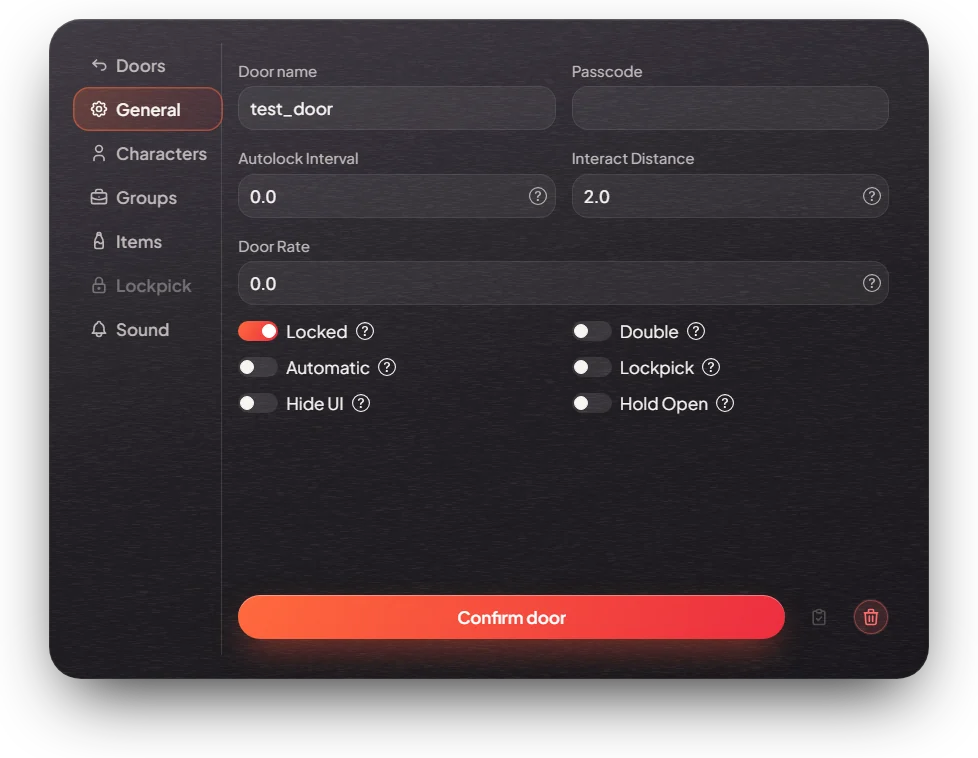
Open the menu
Stand near the door and type /doorlock. The Doors list opens. Click Create a new door.
Name it
On the General tab, fill in Door name. Use a clear name you will recognise later, for example mrpd_front or burgershot_back.
Choose the kind of door
- Single door: leave Double and Automatic off.
- Double door: turn Double on. You will click both halves.
- Sliding gate or garage door: turn Automatic on. Door Rate sets how fast it moves.
Choose who can open it
- Groups tab: add a row per job, with the lowest Grade that may open it. Grade
0means every rank of that job. - Items tab: an item that opens the door, like a keycard. Tick Remove on use if it should be used up.
- Characters tab: single players by their character id.
- Passcode on the General tab: a code anyone can type to open it. You can combine them; anyone who matches one of them can open the door.
Set the behaviour
- Locked: the door is locked after every server restart. Turn it on for nearly every door.
- Autolock Interval: seconds after which an unlocked door locks again (leave empty for never).
- Interact Distance: how close players must stand.
- Lockpick: allow lockpicking. The Lockpick tab sets the difficulty.
- Hide UI: no lock icon on the door.
- Hold Open: the door stays open while unlocked.
- Sound tab: the lock and unlock sounds.
Pick the door in the world
Click Confirm door. The menu closes and the screen says Create new door: interact with [LMB], cancel with [RMB]. Look at the door (it gets an outline) and left-click it. For a double door, click the second half too. Right-click cancels.
Done
The door is saved and works straight away.
Edit or delete a door
- Stand near it and type
/doorlock closestto open its settings. Change what you need and click Confirm door. - Or type
/doorlock, find the door in the Doors list and use its menu: edit it, Teleport to door, or Delete door. - In a door's settings, the copy button copies its settings and Apply copied settings pastes them onto another door. This is handy for many doors of the same building.
Config options
File: [ox]/ox_doorlock/config.lua
| Option | What it changes | Example |
|---|---|---|
Config.CommandPrincipal | Who may use /doorlock | 'group.admin' |
Config.DrawTextUI | Show an "[E] Unlock door" prompt as well as the lock icon | false |
Config.Notify | Show a notification after locking or unlocking | false |
Config.PlayerAceAuthorised | Let staff open every door | false |
Config.LockDifficulty | Default lockpick skill check | { 'easy', 'easy', 'medium' } |
Config.LockpickItems | Items that work as a lockpick | { 'lockpick' } |
Config.CanPickUnlockedDoors | Lockpicks can also lock an open door | false |
Admin Quick Test
This test creates the Mission Row police station front doors yourself, for every police rank.
Setup
- You must be staff (
group.admin). Start as a civilian:/setjob me unemployed 0. - Teleport to Mission Row:
/tp 434.75 -981.92 30.84, then step out in front of the double front doors. For reference, a common setup puts the front doors around 434.75, -981.92, 30.84 with the two halves at 434.75, -980.62 and 434.75, -983.22.
Create the door
- Type
/doorlock. Expected: the Doors list opens. Click Create a new door. - General tab: Door name
mrpd_front, turn on Locked and Double. Leave Passcode empty. - Groups tab: add a row with Group
policeand Grade0. - Click Confirm door. Expected: the text "Create new door: interact with [LMB], cancel with [RMB]".
- Look at the left half and left-click, then the right half and left-click. Expected: the text goes away and a lock icon appears on the doors.
Test who can open it
- As a civilian, press E at the doors. Expected: nothing happens; they stay locked.
/setjob me police 0and press E. Expected: both halves unlock and the icon changes. Press E again. Expected: they lock.- Auto-lock:
/doorlock closest, set Autolock Interval to10, click Confirm door. Unlock the doors and wait 10 seconds. Expected: they lock by themselves.
Lockpick (optional)
/doorlock closest, turn on Lockpick, save./setjob me unemployed 0and/giveitem me lockpick 2. Hold Left Alt on the door and choose Pick lock. Expected: an easy, easy, medium skill check. Passing it unlocks the doors; failing can break a lockpick. Turn Lockpick off again afterwards.
The end
- Keep
mrpd_frontif you want it, or delete it:/doorlock→mrpd_front→ Delete door. Then/setjob me unemployed 0. Result: the police station front doors open only for police.
If it doesn't work
/doorlock does nothing: you are not in group.admin. No outline when you look at the door: it is not a real door object; try the other half or another door. The door ignores E: you are on the wrong job, below the grade, or too far away.