
HUD System
The information that stays on screen while you play, and how each player can change it.
The HUD shows your health, needs, money, job, street and voice range on foot, and a speedometer when you drive.

How it works
| Part | Where | What it shows |
|---|---|---|
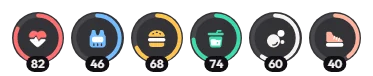
| Needs | Bottom left | Health, armour, hunger and thirst. Stamina and oxygen appear when they drop. |
| Map frame | Bottom left | A rounded frame around the minimap. |
| Street | Next to the map | Compass direction, street name, voice range (Whisper, Normal, Shouting) and your radio channel. |
| Info | Top right | Your server ID, cash, bank, job, clock and date. |
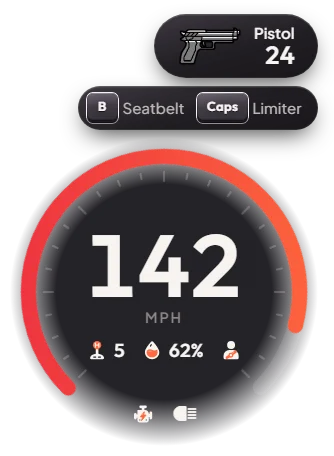
| Weapon | Right | The weapon in your hands and its ammo. |
| Speedometer | Bottom right, in a car | Speed, gear, fuel, engine and light icons, and the speed limit when the limiter is on. |
| Key hints | Right, in a car | B seat belt and Caps Lock speed limiter, lit when on. |
GTA's own money, area name and wanted stars are hidden so nothing shows twice.
Keys & commands
| Key / command | What it does | Who |
|---|---|---|
/hud | Opens the HUD settings menu. Also in the pause menu as HUD layout. | Everyone |
/hudmap | Lines the HUD frame up with the minimap. Sit in a car, move with the arrow keys, resize with Shift + arrows, save with Enter, reset with Backspace. | Everyone |
| B | Seat belt on or off | Everyone, in a car |
| Caps Lock | Speed limiter: the car cannot go faster than the speed you had when you pressed it. Press again to turn it off | Everyone, in a car |
Customise in game
Type /hud to open the HUD settings menu. It has six tabs: Needs, Vehicle, Status, Weapon, Map and Keys. Each player can:
- turn each part on or off (needs, vehicle panel, money and job, street and voice, weapon, key hints),
- show or hide the percentages under the needs,
- pick a needs style: Map rings, Map bars, round, Map bars, square, Side rings or Side bars,
- change the ring and icon colour and the size of each part.
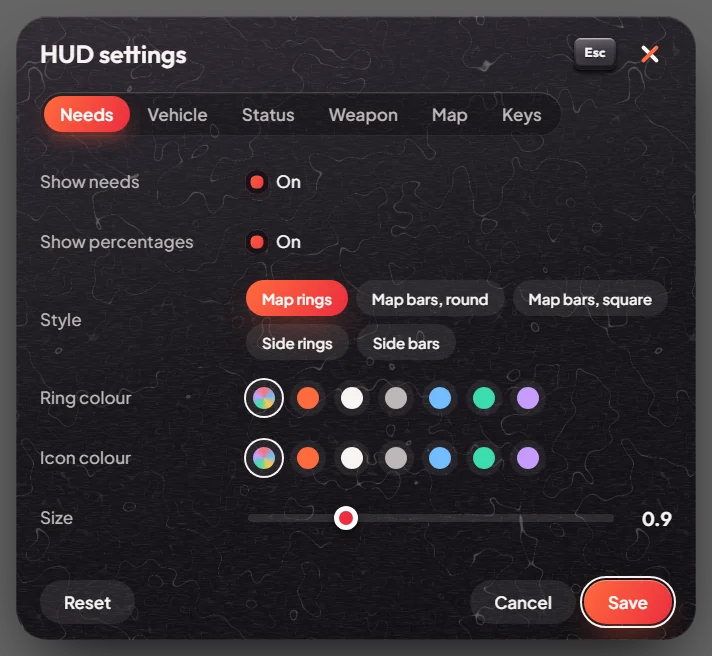
Settings are saved for each character on the server, so they stay after you reconnect. Reset goes back to the default look.
Config options
File: [ui]/mvx_ui/modules/hud/config.lua
| Option | What it changes | Example |
|---|---|---|
Config.speedtype | Speed in miles or kilometres per hour | "mph" or "kmh" |
Config.hudd | The default look for new players: on/off, colour and size of each part | ['vehicle'] = {['state'] = true, ['color'] = "#ff6a3d", ['size'] = 1.1} |
Config.OpenSettings | Set a part to false to hide it for everyone: weapon, needhud, bankcash, keybind | ['bankcash'] = false |
Config.WeaponList | The names shown for weapons in the weapon box | ['label'] = "Pistol" |
Restart mvx_ui (or the server) after a change.
Admin Quick Test
Setup
- Type
/giveitem me burger 1,/giveitem me water 1and/giveitem me armour 1. - Type
/giveitem me WEAPON_PISTOL 1and/giveitem me ammo-9 50. - Type
/giveaccountmoney me money 100.
On foot
- Look at the top right. Your server ID, cash, bank, job, clock and date are shown. The cash goes up by $100 from step 3.
- Look at the bottom left. The needs show health, armour, hunger and thirst around the minimap frame.
- Press F2 and use the armour. The armour ring fills. Use the burger and the water: hunger and thirst go up.
- Sprint for a while. A stamina ring appears. Jump into deep water and swim under: an oxygen ring appears.
- Put the pistol in your hands. The weapon box on the right shows the pistol and its ammo, and the ammo goes down when you shoot.
- Press F11. The voice range next to the street name changes (Whisper, Normal, Shouting).
In a car
- Type
/car adderand get in. The speedometer appears at the bottom right with speed (mph), gear and fuel. - Press B. The Seatbelt hint lights up. Press again to take it off.
- Drive at about 40 mph and press Caps Lock. The Limiter hint lights up and the speedometer shows the limit. Press the gas fully: the car stays at that speed. Press Caps Lock again to turn it off.
Settings menu
- Type
/hud. The HUD settings menu opens. - Switch off Show weapon, Show money and job and Show vehicle panel one by one. Each part disappears. Switch them on again.
- On the Needs tab, change the style (for example Side bars), the ring colour and the Size, and turn Show percentages on. The needs change at once.
- Press Save, then leave and reconnect. Your HUD looks the same as before you left.
- Open
/hudagain and press Reset. The HUD goes back to the default look. - Sit in the car and type
/hudmap. Move the frame with the arrow keys and resize with Shift + arrows until it fits the minimap, then press Enter.
The end. Every part of the HUD shows the right values, hides and shows from /hud, and keeps your settings after
a reconnect.
If it doesn't work: the part was switched off in /hud (press Reset), or it is hidden for everyone in
Config.OpenSettings. If the speedometer shows the wrong unit, check Config.speedtype.