
Banking System
Banks and ATMs where players withdraw, deposit and send money to each other.
What it is
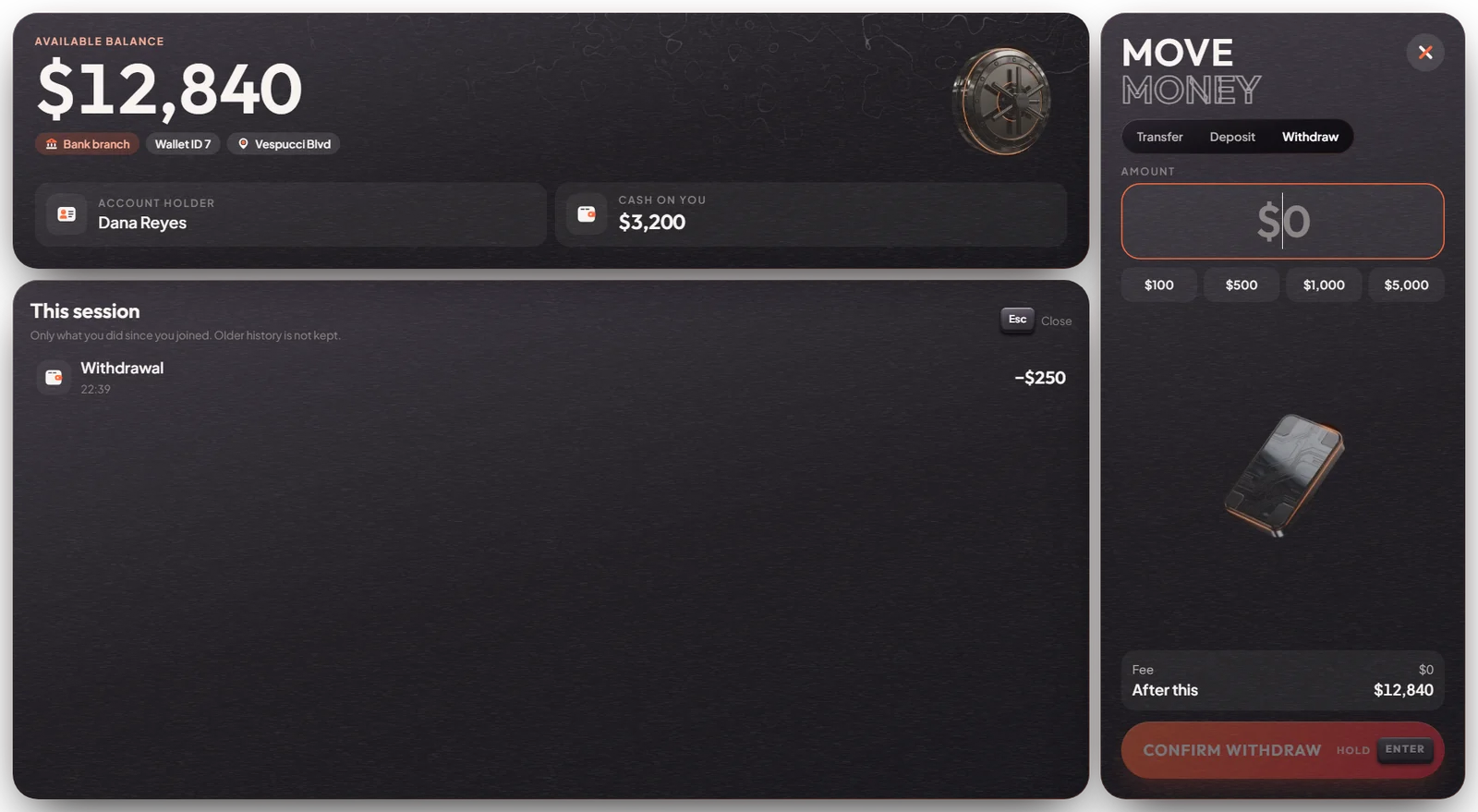
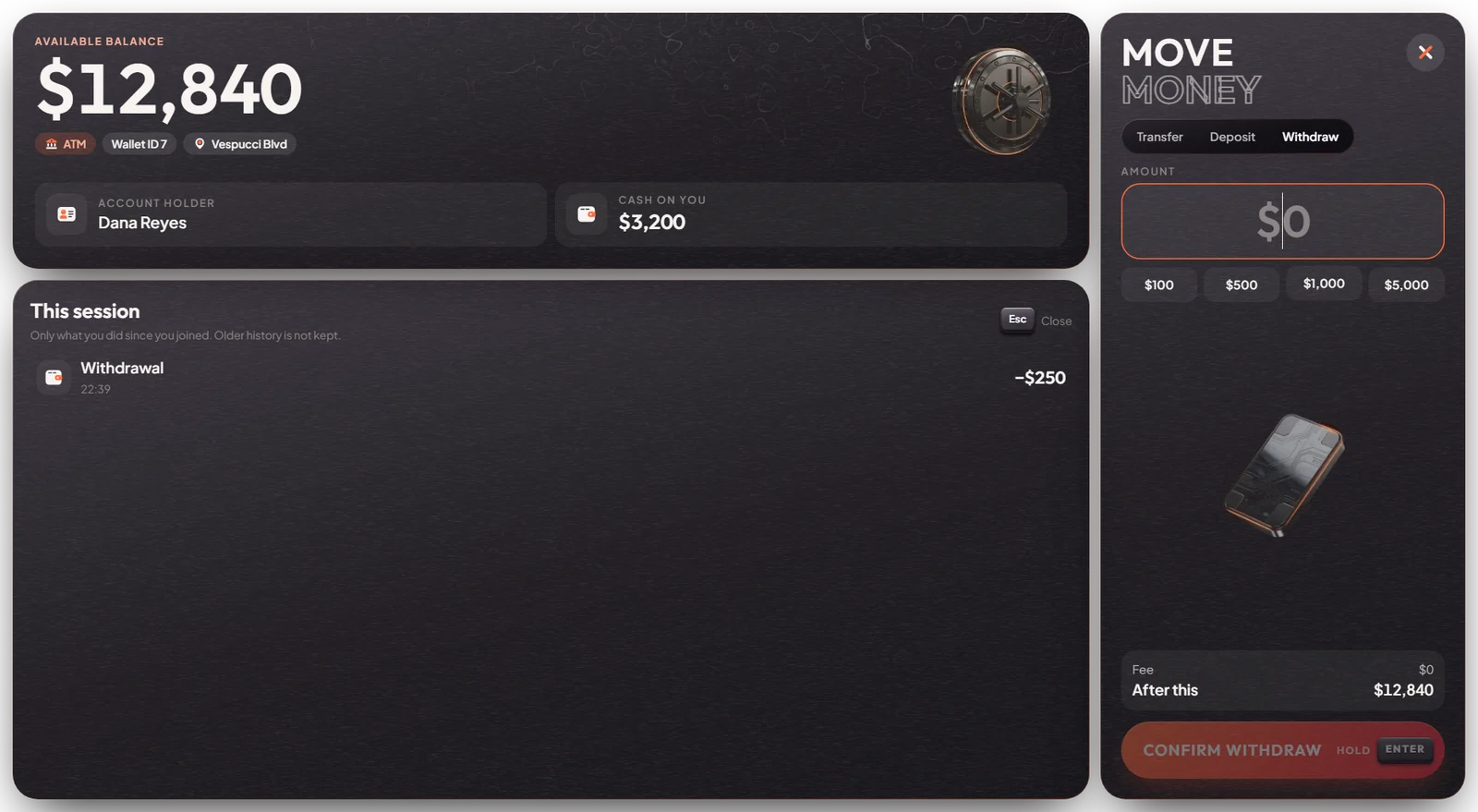
Every bank branch and ATM opens the same bank screen. There you see your bank balance and cash, and you can withdraw, deposit or transfer money to another player. There are no fees.
How it works
Go to a bank or ATM
There are 8 bank branches (they have a map icon) and many ATMs on the streets (no map icon).
Press E
Stand at the counter or the cash machine and press E Open bank.
Withdraw or deposit
Pick the tab, type an amount or tap $100, $500, $1,000 or $5,000, then hold Enter for about a second to confirm. Holding stops you from sending by mistake.
Transfer
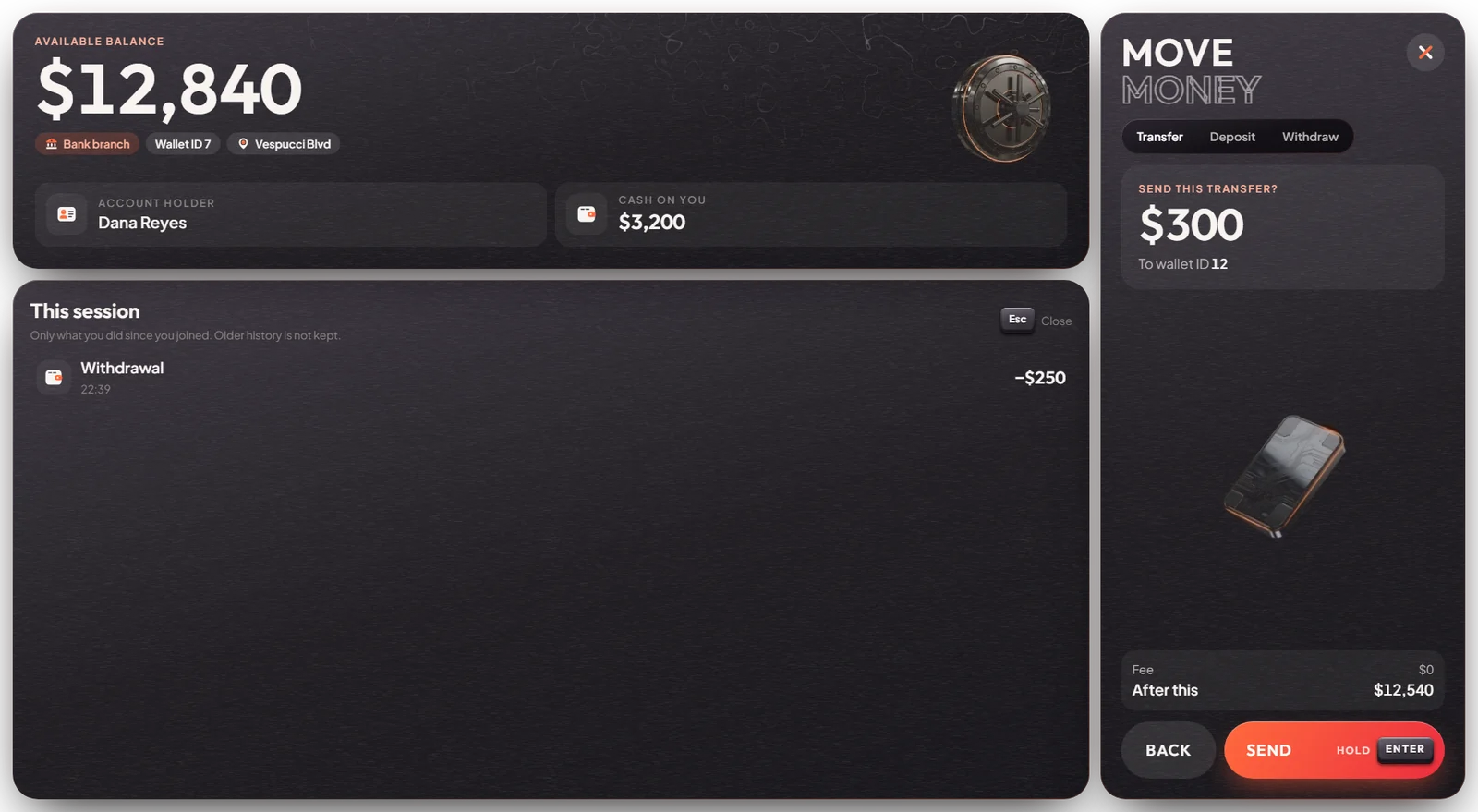
On the Transfer tab type the other player's Wallet ID (their server ID) and the amount. Check the review and hold Enter to send. The other player must be online. Both of you get a message.
New characters start with $3,500 in the bank. Company money (police, taxi, businesses...) is not handled here: bosses manage it on the Boss PC or the Business Office PC.
Keys & commands
| Key | What it does | Who |
|---|---|---|
| E at a bank or ATM | Opens the bank screen | Everyone |
| Hold Enter | Confirms a withdrawal, deposit or transfer | Everyone |
| Esc | Closes the screen | Everyone |
Config options
File: mvx_banking/config.lua. It has two lists, one for banks and one for ATMs.
| Option | What it changes | Example |
|---|---|---|
Config.Zonas["banks"] | Bank branches: map name, icon and position | {name="Bank", id=108, x=150.2, y=-1040.2, z=29.3} |
Config.Zonas["atms"] | ATM spots (no map icon) | {name="ATM", id=277, x=5.1, y=-919.9, z=29.5} |
name | The text on the map icon of a bank | "Fleeca Bank" |
id | The map icon number of a bank | 108 |
To add a bank or ATM, stand on the spot, type /coords (admin), copy the numbers into a new line and run
restart mvx_banking.
Admin Quick Test
Setup
- Give yourself money:
/giveaccountmoney me money 1000and/giveaccountmoney me bank 1000. No job, item or licence is needed. For the transfer step, have a second player online and note their server ID.
Teleport
- Go to the Legion Square bank:
/tp 150.27 -1040.20 29.37(or Admin tablet HOME → World → Teleport with 150.27, -1040.20, 29.37). The bank blip is here and you see the prompt E Open bank.
Open the bank
- Press E. The bank screen shows your bank balance, your cash, your Wallet ID and the tag Bank branch.
Deposit
- Open Deposit, type 500, check "After this" and hold Enter for about a second. Cash goes from $1,000 to $500; bank goes up by $500.
Withdraw
- Open Withdraw, tap $100 and hold Enter. $100 moves from the bank to your cash.
Transfer
- Open Transfer, type the second player's server ID and 50, press Review transfer, then hold Enter. $50 leaves your bank and lands in theirs. Both of you get a message.
ATM
- Go to an ATM, for example
/tp -386.73 6045.95 31.50(Paleto Bay). Press E: the same screen opens with the tag ATM.
The end: cash $600, bank $1,350 (from the starting amounts above). The This session list shows all three actions.
If it doesn't work: no prompt means you are too far away (3 metres at a bank, 2 at an ATM). A transfer fails if the other player is offline or the ID is your own.