
Loading Screen
The screen players see while they join the server.
The loading screen is shown from the moment a player connects until their character appears in the city.
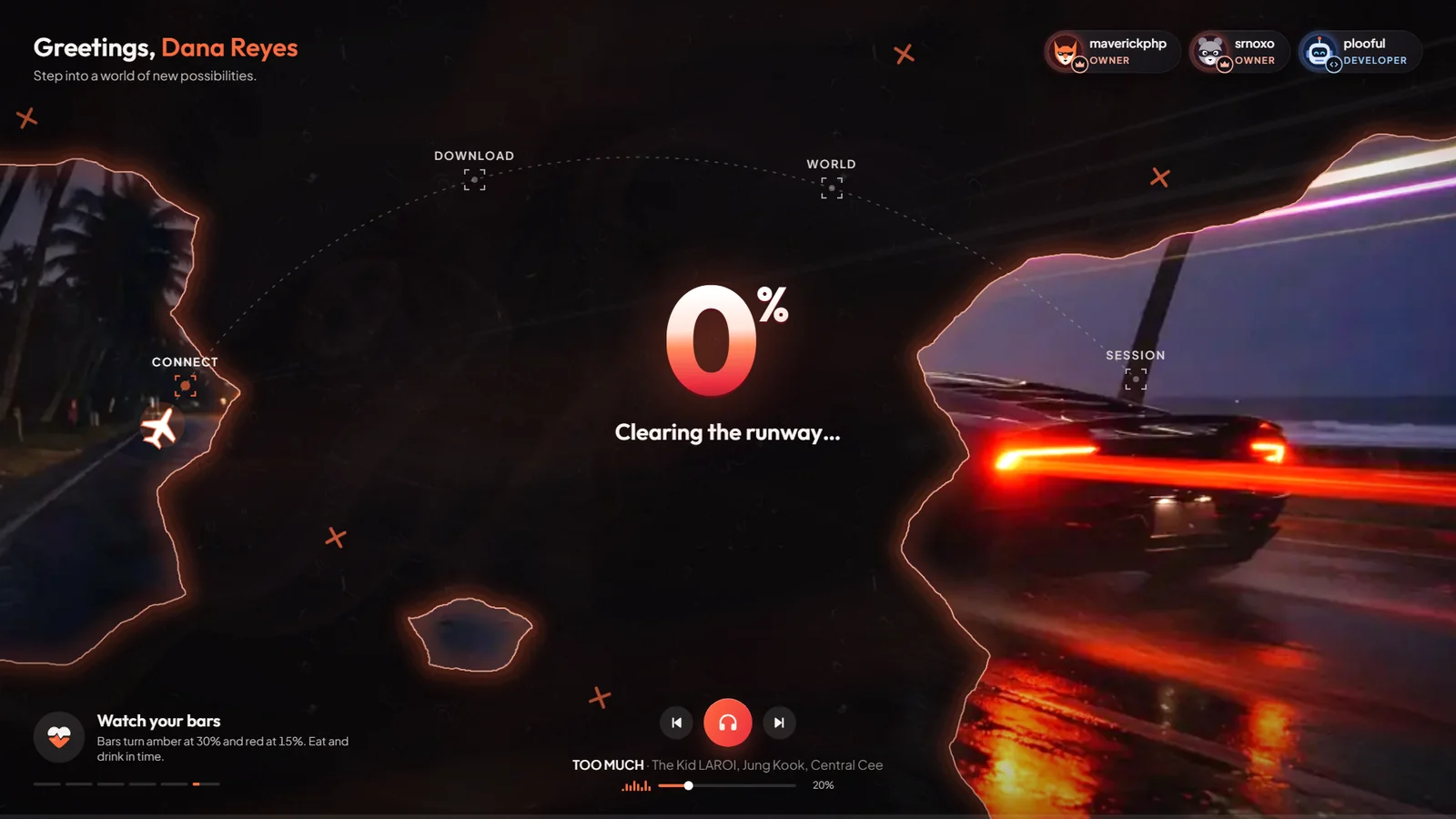
How it works
- A greeting with the player's FiveM name.
- A big percentage and a small plane that flies along four stages: Connect, Download, World and Session. It follows the real loading progress.
- A status line under the percentage, for example "Street lights warming up".
- Tip cards at the bottom left. Click the dots under a card to see the next tip.
- A music player with back, play/pause, next and volume.
- Staff badges at the top right.
The screen closes by itself when the character spawns. There is no server name or logo on it.
Keys & commands
There are no keys or commands. Players only use the mouse for the tips and the music player.
Customise in game
Nothing is saved in game. The volume and pause buttons only last for that loading.
Config options
The loading screen has no config file. Its tips, staff badges and texts are part of the screen itself, so ask the Mavix team to change them.
| What | Where | Example |
|---|---|---|
| Music | Song files in [ui]/mvx_ui/modules/loading/song | song1.mp3 |
Players see changes to the loading screen only after the server restarts, because the screen is sent to them when they connect.
Admin Quick Test
- Leave the server and connect again. The loading screen opens and greets you by your FiveM name.
- Watch the percentage and the plane move through Connect, Download, World and Session. The status line changes as it loads.
- Click the dots under the tip card. The next tip shows.
- Use the music player: play/pause, next, back and the volume slider all work.
- When your character spawns, the screen closes by itself and the music stops.
If it doesn't work: a change to the loading screen only shows after a full server restart. If the screen stays
open after spawning, check the F8 console for errors from mvx_ui.