
Settings & Store
Passcode, Face Unlock, wallpaper and installing extra apps.
What it is
Settings changes how your phone looks and how it locks. Store is where you get the extra apps: Chirp, Valet and Mechanic.
How it works
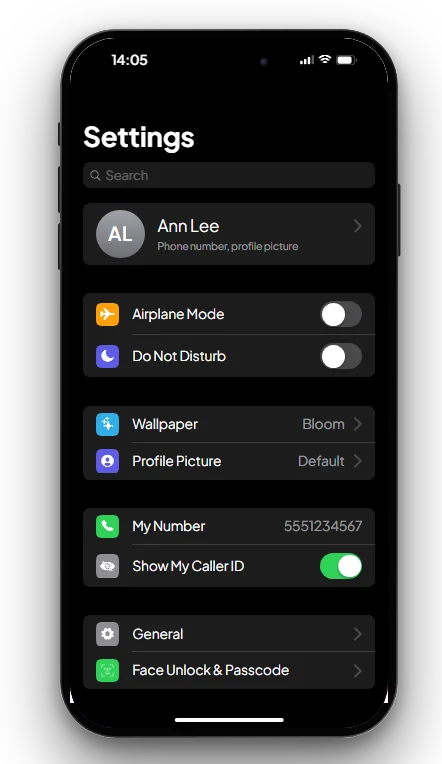
Settings
- Face Unlock & Passcode: set a 4- or 6-digit passcode. With Face Unlock on, the lock screen scans your face and opens without the passcode (it needs a passcode set first). After 5 wrong passcodes in a row the phone is locked for 60 seconds.
- Wallpaper: pick one of the wallpapers (Bloom, Skyline, Horizon, Aurora, Midnight, Sunset, Graphite, Tide).
- My Number shows your phone number. Show My Caller ID off makes your calls anonymous.
- Airplane Mode and Do Not Disturb switches, and a Profile Picture.
Store
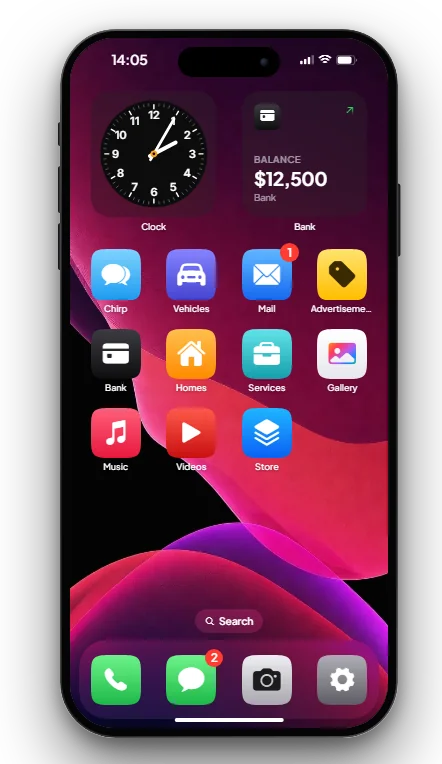
- Open Store. Chirp, Valet and Mechanic are listed with a short description.
- Press Get. The app appears on your home screen.
- Delete an app from the Store again if you don't want it. Its data (for example your Chirp accounts) is kept.
Control Center: swipe down from the top right of the phone for the flashlight and airplane mode.
Keys & commands
| Key / command | What it does | Who |
|---|---|---|
| F1 | Opens the phone | Everyone with a phone |
Config options
File: [scripts]/[phone]/mvx_phone/config.lua
| Option | What it changes | Example |
|---|---|---|
Config.LockScreen.Enabled | Show the lock screen | true |
Config.LockScreen.AutoUnlock | Milliseconds before the phone opens by itself when there is no passcode (0 = swipe to open) | 650 |
Config.LockScreen.MaxAttempts / LockoutSeconds | Wrong passcodes before a lockout, and how long it lasts | 5 / 60 |
Config.LockScreen.HidePreviews | Hide message text on the lock screen | false |
Config.Wallpapers | Wallpapers players can pick (add your own images in html/img/wallpapers/) | { id = 'vxm-skyline', label = 'Skyline', image = 'img/wallpapers/wallpaper-2.webp' } |
Config.DefaultWallpaper | Wallpaper on a new phone | 'default-qbcore' |
Config.AppStore.Downloadable | Apps that must be installed from the Store | { 'social', 'valet', 'mechanic' } |
Config.ControlCenter.Flashlight | Flashlight button in the Control Center | true |
Config.Accent | Colour of buttons and switches | '#ff6a3d' |
Admin Quick Test
Setup
- Type
/giveitem me phone 1and press F1. The lock screen opens by itself after a moment.
Stage 1: passcode and Face Unlock
- Open Settings, Face Unlock & Passcode, and set the passcode 1234.
- Close and open the phone. It asks for the passcode. Type a wrong one 5 times: the phone is locked for 60 seconds.
- After the wait, type 1234. It opens.
- Turn on Face Unlock. Close and open the phone: the face scan shows and the phone opens without the passcode.
Stage 2: wallpaper
- In Settings, pick Midnight as wallpaper. The home screen changes. Reconnect: it is still set.
Stage 3: Store
- Open Store, press Get on Valet. The icon appears on the home screen. Delete it again from the Store.
Stage 4: Control Center
- Swipe down from the top right and turn on the flashlight. A light shines in front of you.
The end. The passcode locks the phone, Face Unlock opens it, wallpapers stay, and Store apps install and uninstall.
If it doesn't work: Face Unlock needs a passcode set first; a lockout lasts 60 seconds.